
10 Simple Ways to Keep Your Mac Secure
Macs have strong security built in, but that doesn’t mean they take care of everything automatically. A few basic habits can make a big difference in protecting your files, accounts and personal information.
Here are ten practical things every Mac user should do.
1. Keep macOS up to date
Apple regularly releases security updates for macOS. Installing them promptly helps protect your Mac from newly discovered vulnerabilities.
Go to Apple menu > System Settings > General > Software Update and make sure automatic updates are enabled.
2. Use a strong login password
Your Mac login password should be unique and difficult to guess. Avoid using names, birthdays, simple number sequences or passwords you also use elsewhere.
If your Mac supports Touch ID, use it for convenience, but keep a strong password behind it.
3. Use automatic screen locking
Set your Mac to lock automatically when you step away from it. This helps prevent someone else from accessing your files, email or other personal information if the computer is left unattended.
You can adjust this under System Settings > Lock Screen.
For most people, requiring a password shortly after the display turns off is a good balance between security and convenience.
4. Use two-factor authentication
Two-factor authentication adds another layer of protection to your accounts. Even if someone gets your password, they still need another trusted device or verification method to sign in.
Your Apple Account should have two-factor authentication enabled, and it’s worth enabling it on important email, banking and other online accounts as well.
5. Use unique passwords for every account
Reusing the same password across multiple websites is one of the easiest ways for one security breach to become several.
Apple’s Passwords app can create and store strong passwords for you, so there’s little reason to keep recycling the same favourite password everywhere.
6. Be suspicious of unexpected messages
Phishing remains one of the most common ways people lose access to their accounts.
Be cautious with emails, text messages or pop-ups claiming that:
- your account has been locked
- a payment has failed
- your Mac has a virus
- you need to verify your password immediately
- you’ve won something you don’t remember entering
When in doubt, don’t click the link. Go directly to the company’s website or app instead.
7. Only install software you trust
Download applications from the Mac App Store or directly from reputable developers whenever possible.
Be especially wary of software offered through pop-up ads, fake update notices and websites claiming your Mac needs an urgent cleaner, antivirus tool or browser extension.
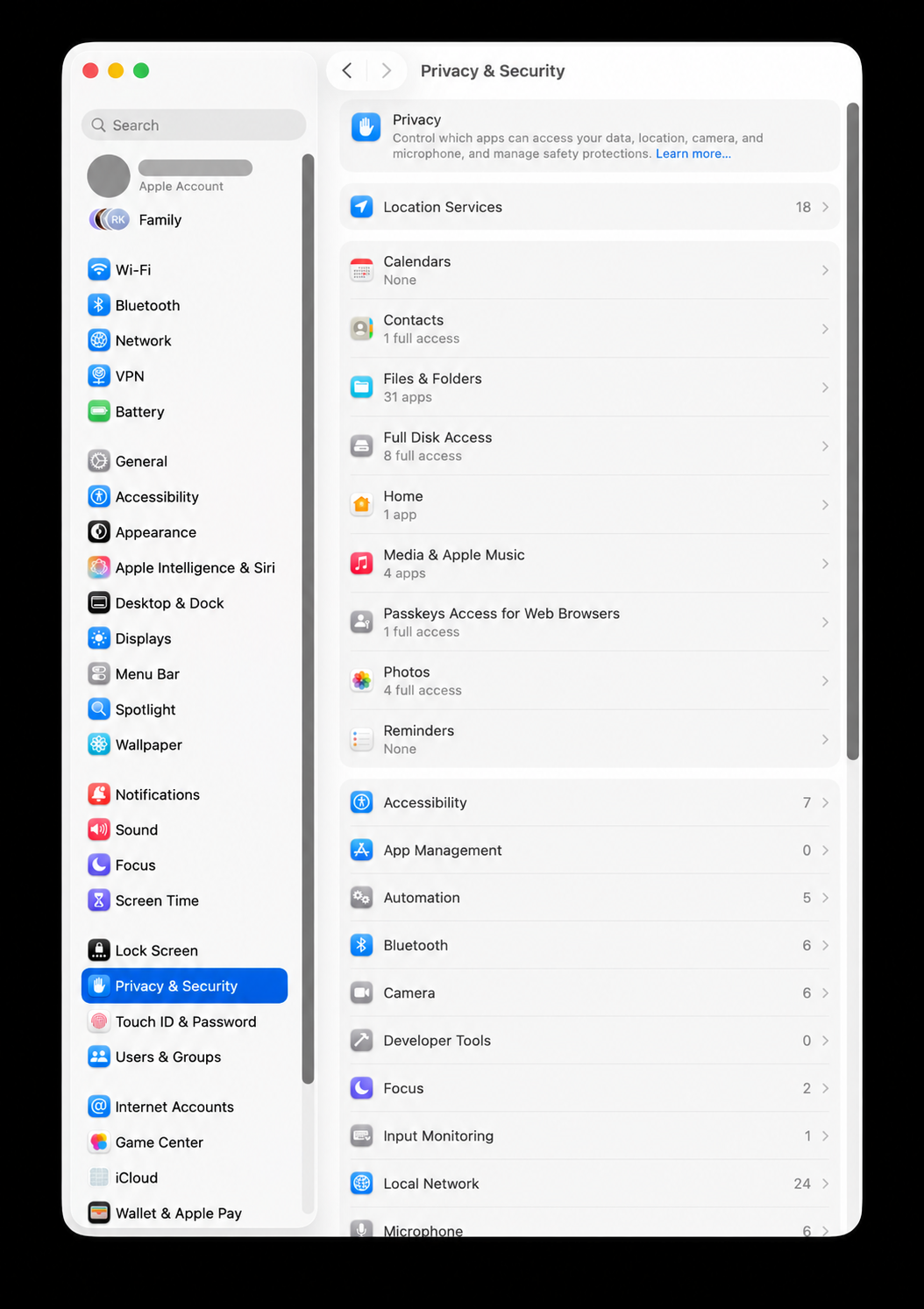
8. Review your privacy and security settings
Open System Settings > Privacy & Security occasionally and review which apps have access to things like:
- your camera
- your microphone
- your location
- your contacts
- your files and folders
- screen recording
If an app no longer needs access, remove it.
9. Turn on Find My Mac
Find My can help locate, lock or erase your Mac if it is lost or stolen.
You can confirm it is enabled in your Apple Account settings under iCloud > Find My Mac.
10. Keep a current backup
Security isn’t only about preventing someone from accessing your computer. It’s also about being able to recover when something goes wrong.
A current Time Machine backup can protect you from hardware failure, accidental deletion and other disasters that security software can’t prevent.
Do Macs need antivirus software?
For most home users, the security protections built into macOS, combined with sensible browsing habits and regular updates, provide a strong foundation.
Third-party security software can still make sense in certain situations, particularly in business environments or where specific security requirements exist. But no security program can protect someone who keeps approving suspicious downloads and typing passwords into fake websites.
Need help securing your Mac?
If you’re unsure whether your Mac is properly protected, Up Your Media can help review your security settings, backups, passwords and software.
We provide practical Apple support in Parksville, Qualicum Beach and throughout Central Vancouver Island.
Contact Up Your Media if you’d like help making sure your Mac and Apple devices are set up securely.