
Your OSX System Preferences Explained
 These are your Mac’s System Preferences. They can do a lot. So, as an exercise, I’m going to go through each of them, one a day, and show you what they do. For starters, you can find them in your Apple menu, very top left of your screen.
System Preferences #1 – General
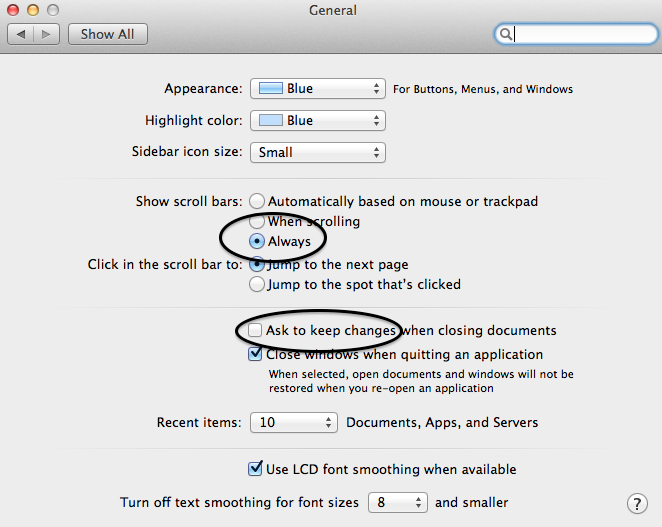 This one’s mostly about appearance, such as highlight colour and size of sidebar icons. My suggestion, as always, is to open it up and see what each option can do. You can’t ruin anything. The one that matters to me the most is the option for automatic scroll bars. After upgrading to a new OS, you may be dismayed that your scrollbars have disappeared due to the default, ‘automatically based on location’. First thing I do is switch that option to ‘always’. I just don’t like to hover in hopes that my scrollbars will appear. You ight also want to select, ‘ask to keep changes when closing a document’, too.
System Preferences #2 – Desktop and Screensaver
This is where you choose your desktop picture, whether it’s from Apple’s default folders or your own Photos library. You can choose to rotate through a selection of your photos on a schedule of seconds, minutes or days. If you don’t want your slideshow to include your entire Photos library, you can create an album of your top 10, 50 or 200 etc photos, and select it as your target folder.
There are screensaver options on the second page, though screensaver are not as crucial as they were when we used old cathode ray tube (CRT) monitors

 Email Webpage Link Or Contents
 Change Email Signature on iPad / iPhone
 Change Email Profile Picture
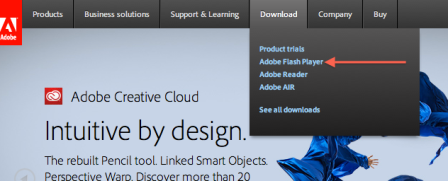 Lots of emails this week about the new Adobe Flash update and how to install it. They seem to update this plugin every 4 to 6 weeks, and it’s essential to many online services like YouTube videos and other sites.
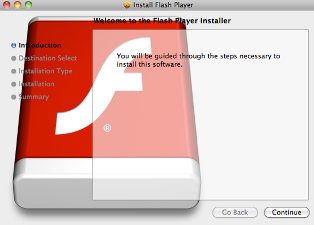 Now this is where most people get tripped up. After downloading the software, you still have to go through several steps to complete the install. Locate the update .dmg (disk mounted image) file in your downloads folder. Double click to launch the installer.
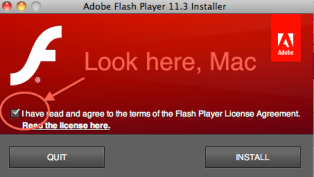 Choose the volume where you wish to install the software (your Macintosh HD) and follow the prompts the installer presents. It will require that you close any browsers, Safari, Firefox etc., before continuing.