Up Your Media Apple Web and Tech Blog

Parksville / Qualicum Beach's only Apple Certified Macintosh Technician (ACMT) and Apple Support Professional, Dan LaRocque, posts semi-regular tips and blogs about his day-to-day experiences with Macintosh computer technology, social media, web marketing & design and other technology related developments.

Big News In Our December Email Newsletter

Some Pretty Big News From Up Your Media –
New partner, new workshops, operating systems explained

Welcome Rob Van De Weghe

After 12+ years as a strictly solo operator, I’ve partnered with someone who can add value to the team, in a very specialized field.  

Introducing Robert Van De Weghe, a newcomer to the Island, but someone I’ve known personally for over 20 years, and who was, in fact, my original inspiration for entering the Apple repair technician industry in the first place. He used to repair my Mac computers in the 90s and early 2000s until I grew tired of travelling to Vancouver for computer service, and took the training in 2008.

Introducing Rob Van De WegheHe comes with a ton of experience in high level technical computer repair. He’s been an Apple Certified Mac Technician since 1998, with an expertise in Apple help desk and support for hardware, OS and software. He spent the last 13 years as IT manager for Rethink, Western Canada’s most creative advertising agency.

Rob is going to take on much of the hardware repair and in-home troubleshooting and training services I’ve always offered. He also has an expertise in smart home setup, home automation, and wireless networking for larger homes, so you should consider us for those services too. Having someone else trustworthy on board will allow us to extend our hours, extend our geographcal range and availability, and increase our range of services.

More Workshops for the New Year

Meanwhile, here’s a quick look at our workshop schedule for the coming new year. All classes will take place at the McMillan Arts Centre in Parksville, with the option to Zoom in. If there’s one thing I’ve learned in the past 21 months, it’s just how reliant we all are on our technology for just about everything. Digital literacy, and being able to roll with the constant changes coming down the technology pike, is crucial for all of us. 

February 17th 3:30-5pm – Intro To Mac Level II
March 3 3:30-5pm – iCloud for iPads and iPhones
March 17 6:30-8pm – Social Media for Parents of Teens
March 31 3:30-5pm – Intro To Mac Level I
April 21 3:30-5pm – Intro To Mac Level II
May 5 6:30-8pm – Using the Photos App

What is an Operating System, and which one should my computer be running?

The Operating System, or OSX, is the primary software that powers your Mac computer. Apple generally releases a new operating system every year in the fall. Your computer is limited by its age as to which Operating System it can run. In general, if your computer was built anytime after 2015, you can run the most current operating system, Monterey, but that doesn’t mean your older computer doesn’t still have plenty of life. 

2010 – If your computer was built before late 2009, you can’t upgrade any higher than El Capitan 10.11. Computers running El Capitan have recently become more or less useless on the modern intent because of certificate and security issues. You can still check email and run your applications, but many websites have become unavailable to your browser. Apparently there is a workaround for this issue, but it might not be worth it for most users. 

Late 2009 to 2012 – These computers can run High Sierra 10.13. High Sierra is still able to power through the modern internet, for the time being. Note, all my home computers are running High Sierra. 

2013 – These computers can run Catalina 10.15. This is the oldest operating system that still receives security and other updates.  2014 computers can run Big Sur, OSX 11, and note, upgrading to Big Sur changes the entire file structure of your computer from the previous HFS+ to APFS, and can often cause performance problems and can require more preparation than normal. Most computers built post-2015 can run the most recent OSX Monterey, released just a month ago.

Here’s a good list and description of all Apple Operating Systems going back to 2001 here. 

The definitive list as to your computer’s maximum operating system is available here

Internet Speed Test

Interested in knowing how fast your interrnet is? Go to Speedtest.net and find out. Your speed is determined by your account with Shaw or Telus and the infrastructure hardware available in your area.  Measurements are in megabytes per second. For reference, I just switched to Telus to take advantage of their 900 megabytes per second fibre-optic special, In reality, I’m getting less than that. If your internet speed is causing you grief, it might be time to make a call to your provider. 

Support Local This Christmas

He won’t say it because he’s a humble guy, and praise isn’t why he did it, but Kevin Kinnear from Parks West donated 5% of his October sales to Forward House, to the tune of more than  $7000. He also singlehandedly sponsors more minor hockey and baseball teams than Amazon ever has. So when you’re thinking about Christmas gifts and stocking stuffers, photo printing and office supplies, save the drive and the money and head to Parks West at 114 Hirst Ave.  Let’s shop local this Christmas 
He also has an impeccable sense of style.  


That’s all for now. Many thanks for your continued support and trust. If you have time, please add a Google review of our services. Reviews help us build our business and improve our service. 

Our May 2021 Spring Up Your Media Newsletter

Our First Up Your Media Newsletter since March 3, 2020!

This is our first newsletter since last March 3rd 2020. At the time, I was hyping our upcoming workshop schedule for March, April and May. Little did we know… 

It’s been a very busy year for me, since computer services were declared essential right away, and all of a sudden everybody needed their technology working in tip-top shape. I’ve been doing repairs, upgrades, and onsite Apple training and troubleshooting since the beginning of the pandemic, and will continue to do so, using proper mask and sanitizing protocols. I’ve been diligent in my precautions, since many of my house-call clients are in their 70s, 80s and even 90s. I’m doing everything I can, at work and in my private life, to keep those clients safe.

PQBeat Digital Literacy Podcast

I was proud to appear on a recent edition of the PQBeat Podcast from PQBNews, speaking on digital literacy and internet security. We talked about how to spot online scams, effective password management, and how to protect yourself from Malware and phishing scams. You can visit and listen to the podcast here.

Passwords Passwords Passwords

From what I’ve observed, passwords continue to be the biggest hurdle for people in their day to day computer lives.  I can’t stress it enough, and I’ve literally been saying it for over 10 years now, your best practice is to record your passwords on paper and keep that paper somewhere safe and handy. Paper and pencil are still the easiest, most reliable technologies for reliable password management. 

Yes, there are many good password manager applications out there, including Last Pass, 1Password, and iCloud Keychain, but for many of my clients, setting up and maintaining a password manager is as much, or even more trouble, as manually managing their passwords. 

Here’s the simplest technique I can suggest for creating decent passwords. Remember that the longer a password is, the harder it is to hack.  I find most people use one or two base passwords, and then use variations of it on all their services. This is not the worst idea, as we must balance security with usability.  But, to be able to follow the security recommendations of having one unique password per account, consider using that base password string, and then adding the name of the service you’re signing into.

For instance, let’s say Bubbles is your dog’s name, and it’s what you use for most of your passwords (don’t laugh). Using a password strength checker, we find that bubbles or Bubbles1 would be cracked by a robot immediately. Bubblesdog would take 6 months, and Bubblesdog1 would take 200 years. So, using the above solution, you would set Bubblesdog1apple for your Apple ID password, Bubblesdog1gmail for your Gmail password, and Bubblesdog1facebook for your Facebook password. It’s just a suggestion, but whatever system you settle on, stick with it, and write those passwords down!

McMillan Arts Centre’s New Creative Lab

We’ve been working with our friends at the McMillan Arts Centre on their new digital workshop studio. Thanks to some new Arts funding, they were able to upgrade their technology to include new computers, cameras and TVs to enable their Arts workshops to continue, by using Zoom. It’s a very sweet setup, and we’re looking forward to running some of our own technology workshops in a hybrid Zoom and in-person format in the very near future. Keep checking our email newsletters for details. 

Got Zoom?

Take a quick Zoom survey. We’re trying to gauge the interest in running Zoom tech workshops, both through the MAC,  through the PQMUG, and independently as Up Your Media. The Mac Users Groups hasn’t been able to meet since last February, and I know there’s been a real lack in technology learning opportunities over the last year. As I said at the top, we’re relying on computers and technology even more than ever, for shopping, communication, games, business meetings etc. How have you adjusted to the new landscape? 

Shaw Mail Capacity Issues

Anyone who’s used Shaw email for any length of time has seen the warning email in their inbox that their email capacity has been reached. For whatever reason, Shaw hasn’t upgraded their customer’s email capacity since the 1990s. You max out at 1 GB of space, and once you’ve reached that limit, you will no longer be able to send or receive email. For context, Gmail offers 10 GB and Telus is offering 15 GB. 

I find that often it’s the Sent mailbox that is storing all your archived emails, since most people regularly monitor and maintain their inbox, but rarely cull their Sent emails. Try that, if you’re approaching capacity, and don’t forget to delete your email trash.


Donate Your Old Macs

I’m still accepting your older Mac products to use and refurbish for charity. It’s evident, now more than ever, that absolutely everyone needs access to computer technology for schooling, working, shopping and staying in contact with friends and family. Since last year, I’ve been able to donate a number of refurbished computers and iPads to people who had no computers at all, and sell other more modern machines to donate the money to charity. I was able to drop off $720 to the SOS Christmas fund, and some more to local anti-child poverty initiatives. I’m also open to buying your unused machines as well refurbish and redistribute, to keep them out of the landfill and ensure they’re being used by someone who needs them. 

The 4 Main Components Of Your Apple Computer, And What Can Possibly Go Wrong?

There are 4 main components to your computer that dictate performance and can periodically require maintenance

  1. Hard Drive – The hard drive is where your personal data, plus OS and other software, is stored. Most drives are mechanical (HDD) but more modern drives are Solid State (SSD). HDDs are more likely to fail than SSDs but both can experience corruptions due to volume count and directory errors. A disk repair generally costs about $100 while a disk replacement runs from $250-$300. Don’t forget to buy an external hard drive as a Tme Machine backup.
  2. RAM – or Random Access Memory is independent of the hard drive, and is available, generally, to the software and applications as the computer is operating. The more you have, the faster your computer will run. To determine how much you have, look in the About This Mac dialogue in your Apple menu. 
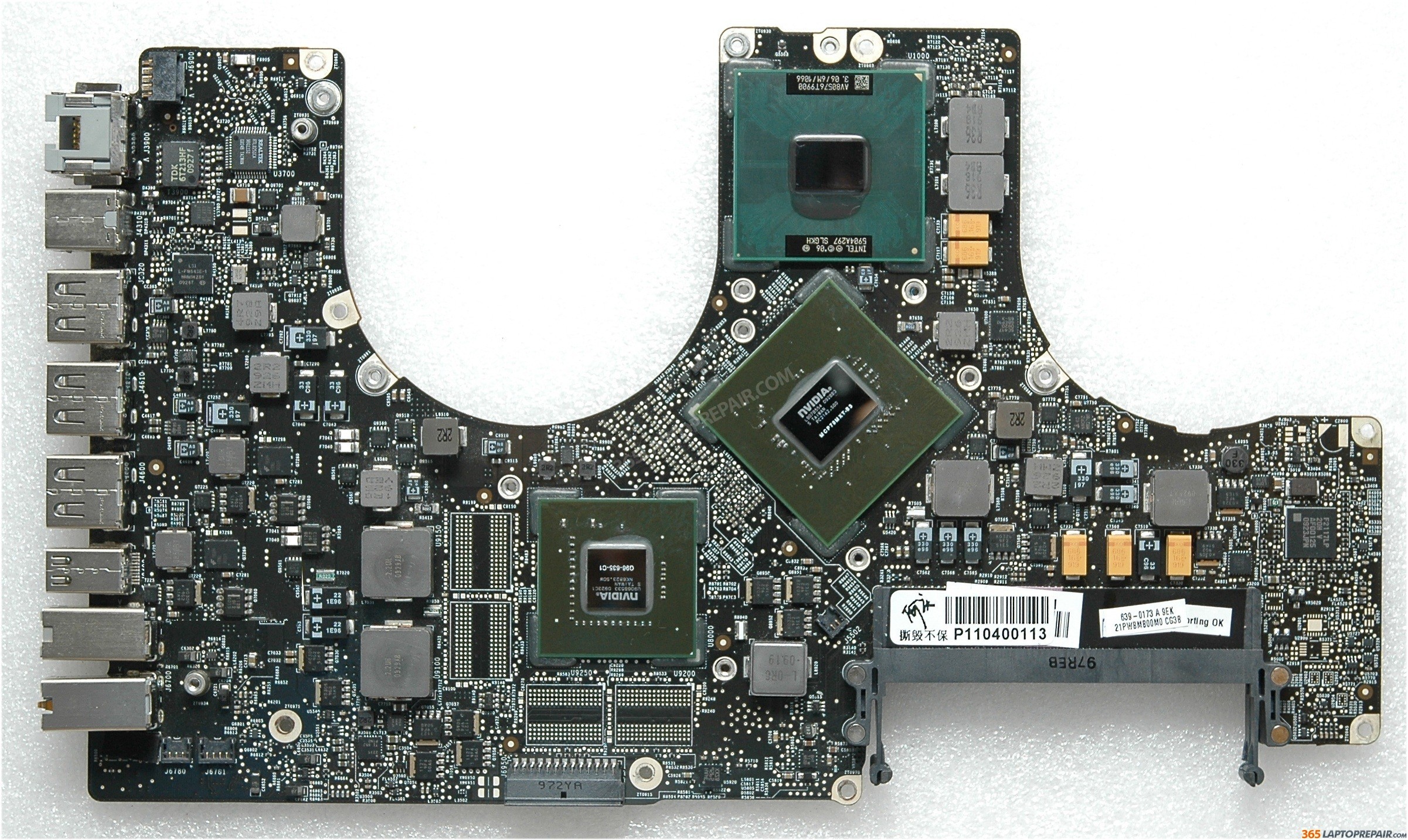
  3. macbook pro logic boardLogic board – This contains the CPU and the GPU (graphics processing unit). Sometimes the graphics processor will fail due to too much heat or other factors. Often this can be replaced or repaired, usually at a cost of $300-$500. IF YOU SPILL WATER, WINE, COFFEE, OR ANY OTHER LIQUID IN YOUR COMPUTER, it can “possibly” be fixed depending on the amount and location of the corrosion and electrical shorting the liquid caused. It WILL be expensive, between $300-$500. The alternative to repairing either of these situations is to replace the logic board altogether, usually around $800-$1000.
  4. Software – I like to say that over the past 10-20 years, the hardware in your personal computer hasn’t changed that dramatically. However, the software that runs that hardware changes constantly. I regularly see operating systems from 2007 (Snow Leopard 10.6.8) and every variation in between, while the current one today is Sierra (10.12.3). In addition, the other native softwares in your machine, ie., Safari, iTunes, Photos, etc need regular updates, as do third party applications like Microsoft Word, Flash, and Java. Not every operating system is appropriate for every vintage of computer, even if it’s compatible according to Apple. 

Adobe Flash Update Tutorial, July 4 2016

Adobflash update tutoriale Flash received an update on April 21st 2016, and it’s starting to affect usability. I had written a tutorial on how to upgrade your version a couple years ago, but here is some more current information. 
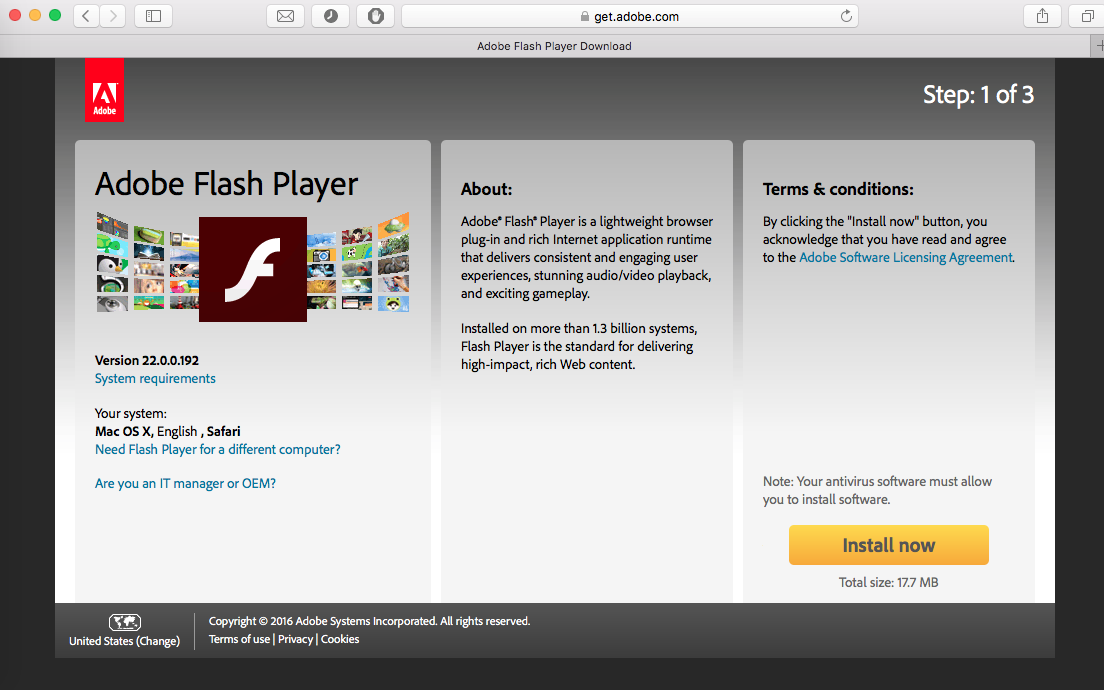

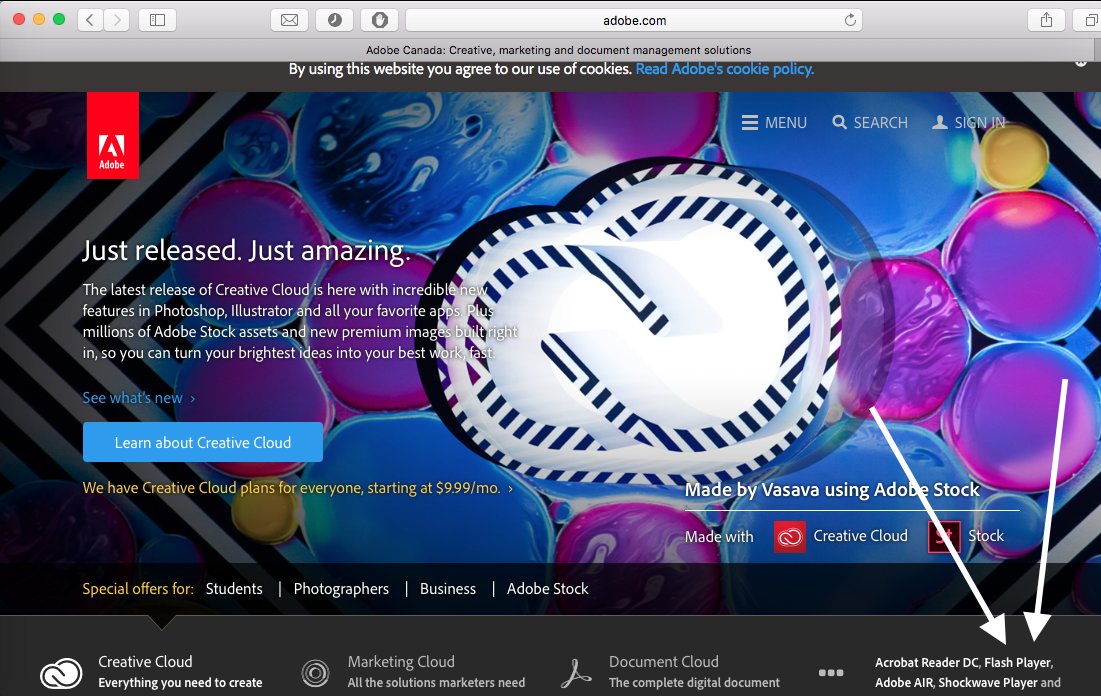
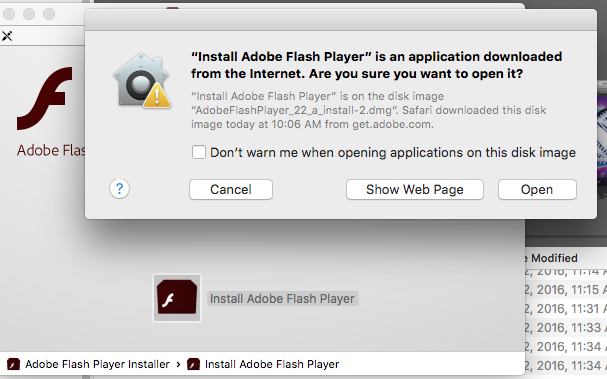
Screen Shot 2016 07 04 at 10.02.16 AMTo avoid following a link to a bogus download, I advise going directly to Adobe.com, then following the link to the Adobe Flash download. From there, you have to follow ALL the steps to download, launch and install the update (many people tend to simply click the ‘install now’ link and assume they’re done). The software will appear in your downloads folder, double click on the ‘.dmg’ file (it’s a disk mounted image) and launch the installer, then double click the ‘install flash player’ button, then agree to open the software. You’ll have to sign in with your computer login password to authenticate, then continue to follow the installation process. To complete it, you’ll have to relaunch your browser(s). Once done, you can continue to watch Youtube videos, view JacquieLawson e-cards, reserve ferries, etc.Screen Shot 2016 07 04 at 11.06.25 AM
Your OSX System Preferences Explained

System PreferencesThese are your Mac’s System Preferences. They can do a lot. So, as an exercise, I’m going to go through each of them, one a day, and show you what they do. For starters, you can find them in your Apple menu, very top left of your screen.

System Preferences #1 – General


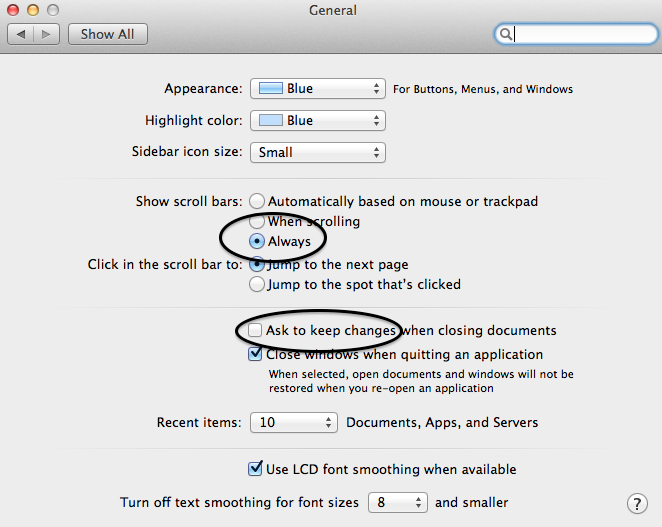
systempreferences1This one’s mostly about appearance, such as highlight colour and size of sidebar icons. My suggestion, as always, is to open it up and see what each option can do. You can’t ruin anything. The one that matters to me the most is the option for automatic scroll bars. After upgrading to a new OS, you may be dismayed that your scrollbars have disappeared due to the default, ‘automatically based on location’. First thing I do is switch that option to ‘always’. I just don’t like to hover in hopes that my scrollbars will appear. You ight also want to select, ‘ask to keep changes when closing a document’, too. 


System Preferences #2 – Desktop and Screensaver

This is where you choose your desktop picture, whether it’s from Apple’s default folders or your own Photos library. You can choose to rotate through a selection of your photos on a schedule of seconds, minutes or days. If you don’t want your slideshow to include your entire Photos library, you can create an album of your top 10, 50 or 200 etc photos, and select it as your target folder.

There are screensaver options on the second page, though screensaver are not as crucial as they were when we used old cathode ray tube (CRT) monitors

July’s Apple Tips And Tricks Newsletter

How To Create An Apple ID, Quick Guide to Bits and Bytes, How To Change Your Wifi Network Password, How to create a monthly calendar item, How to set a specific ringtone, recent software updates

How To Create An Apple ID

Hard to believe, but there are people out there using Mac computers who have never created an Apple ID. Any computer post-Snow Leopard does require an Apple ID to be able to buy apps, rent movies, buy music and books, and take advantage of the benefits of iCloud.

The process is pretty straightforward. Navigate to https://appleid.apple.com/account and fill in all the details. The tricky part comes at the point where you have to answer a series of security questions. The problem is, you could potentially forget the answers to the questions 2 or 3 years down the road, or even tomorrow afternoon, if you’re like me. Best practice would be to take a screenshot of the answers by pressing command-shift-4 simultaneously and drawing the mouse coordinates over the answers. Store the screenshot on your desktop, or wherever else you can find it easily. You’ll also have to fill in your birthdate. Please don’t try to trick them into thinking you’re younger than you actually are. Don’t laugh, I’ve seen it happen. When, not if, you forget your Apple password, you will need these details to reset your password.
You don’t need to add your credit card info at this moment, you can choose ‘none’ as your payment method.
Create a good, strong password. Your Apple ID contains many important details about you, and you don’t want scammers getting access to those details. Refer to one of my older blog posts about how to create a strong password here. http://upyourmedia.com/wpnewuym/…/13-passwords-and-security-for-…
You’ll have to verify your email address before the ID becomes active, just follow the link in the email Apple sends.

A Short Guide to Bits and Bytes

Your computer uses bits and bytes to process information. 1000 bytes is a Kilobyte. 1000 KB is a Megabyte. 1000 MB is a Gigabyte. 1000 GB is a terabyte. Your front facing iPhone camera takes pictures of about 150-300 KB, the rear-facing camera is closer to 3 MB. So if you have a 1 TB hard drive, you can cram in with about 333,000 selfies. Get snapping’!

How To Change Your Wifi Network Password

There are a few reasons why you might want to change your wifi password. I use the technique to get my unco-operative teenage son’s attention. To do so, log in to your modem via Safari by typing the modem’s IP address in to the address field.  (Telus and Shaw addresses and passwords will be printed on the modem itself, for D-links etc, you may have to do a Google search for the address. It will look something like 192.168.0.1) Look for your wireless settings, change the SSID (network name) if you wish. CSIS Surveillance Van, or Click Here Mom are two good choices. Then change the password. Distribute the password at your discretion. Keep in mind that ALL of your devices will have to have the new password entered, including your wireless printer, iPhone, Apple TV, etc, 

If your wifi is being served through an Apple Airport Extreme or Express, you can easily change your password through the Airport Utility.

How To Create A Recurring Calendar item in Calendars

You can create monthly recurring events in your Calendar app. (or weekly,  bi-weekly, or even every 2nd Friday of the month).  Easy, and handy for regular events, such as pre-authorized payments, book-club meetings etc. I use this one to keep track of my pet’s flea medications. Create the event as normal, but when you go to edit it, click the ‘repeat’ option in the data field. Choose the applicable option, daily, weekly, bi-weekly, monthly. Alternately, you can select Custom, which will allow you to set custom details, such as every six weeks, every 3rd Tuesday, etc. You can even choose to be alerted the day, hour or week before, to ensure that you’re prepared. Works!

How to Set an Individual Ringtone for a Specific Contact

I love my ringtones, and I love to be able to know who is calling or texting without even glancing at my phone. I’ve created many many ringtones that I assign to my favourite contacts, many of them that are fully in line with the personality of the contact, and I’m working on making them available on my website. There are 2 dozen stock ringtones already available to you on your iPhone, and to assign one to any contact, you need to navigate to your Contacts App, open the specific contact of your choosing, click edit, then change the ring or text tone from default to one of the other tones available. It really does make ignoring your phone a little easier, and can set yours apart from the other 15 iPhones in line at the bank. 

Bulletproof Email Solutions for iPhone and iPad

Now that you’ve got an iPhone and / or iPad, your email app is sure to be one of your most important tools for staying connected with friends and family while out on the road, or on the beach.

The major cellular providers on the Island, Rogers and Telus, have some obscure and hard-to-find email setup instructions for Apple devices. Shaw, the dominant internet provider, also fails to give a coherent solution for sending and receiving emails while outside your home’s wireless network area. Even if you manage to input the correct credentials, the results are often inconsistent and generally frustrating.

In my experience, your best and simplest bet for email on your mobile device is to use a Gmail account, and filter your existing email through that account. You can continue to send mail using your regular address no matter where you are, whether at home, in a coffee shop, or lounging poolside. Gmail is secure, free, accessible anywhere, and backed by Google, one of the largest, most respected companies in the world.

Navigate to http://gmail.com and click the sign up button, then follow the simple steps to create a Google account. Your Google user name will become your Gmail address, ie., This email address is being protected from spambots. You need JavaScript enabled to view it..

Adding your new Gmail address to your mobile device is dirt-simple. Just type the address into your mail settings along with your password, and the device will add the rest of the settings automatically.

Once you’ve created the address, you can navigate to the Gmail settings menu to allow you to send email from your existing Shaw, Telus, or any other address. That option appears in the ‘Accounts and Import’ panel of your Gmail settings. Add your existing address in the ‘Send Mail As’ option in the list. You’ll have to then confirm your account via an email that Google will send you.

On the same settings page, you can also choose to use Gmail to check the messages from your other account, thus allowing you to keep just one email account on your device. Because Gmail uses the IMAP protocol, this will help sync your messages across all your applicable devices, ie., if you delete an email from your phone, that message will also be deleted from your iMac, your iPhone, and your iPad.

There may come a day when local service providers catch up with the technology their customers are using, but until then, Gmail will do just nicely, thank you.

Up Your Media Quick Mac Tips Newsletter Volume VI

Manage iPhoto Duplicates with Duplicate Cleaner for iPhoto

This 3rd party application, available for free at your App store, actually works to locate and delete exact iPhoto duplicates. Free up a little disk space and trim down those annoying duplicates.

Create PDFs with the print function.

The easiest way to create a PDF (portable document format – the best format for sharing documents across multiple platforms), open your document in the application where you created it, (safari, pages, word, mail) click print, in the lower left corner of the dialogue box, open the ‘pdf’ drop-down box and choose ‘save as PDF’.

Merge multi-page PDFs with Preview.

Now that you’ve created your PDF with either the print function, or with your scanner, you can merge multiple one page documents into single documents with multiple pages. Use preview to open both documents, choose the View menu and select ‘show sidebar’. Drag the document’s icon from the sidebar directly over top of the second document’s icon and save the new multiple page document.

Email link from Safari

This one’s easy. When browsing in Safari, you can mail the contents of your page by going to your file menu and choosing ‘mail contents of this page.’ or ‘mail link to this page’.

Capitalize with Pages

You can transform your Pages documents to All Caps, Small Caps or none, using the Format > Font > Capitalization feature in the Format drop down menu.

Apple Quick Tips Newsletter Volume VII

logoEmail Webpage Link Or Contents

As with anything Apple, there’s always more than one way to skin a cat, or in this case, to email a Safari webpage to a friend. With the webpage open, go to your File menu and choose either the Mail Contents, or Mail Link To This Page. Advanced users might prefer to use the keyboard shortcuts. Alternately, you can customize your Safari Toolbar to show the email toolbar icon

Add Auto-Responder To Your Emails

You can add an auto-responder to your email, so that all incoming emails are automatically responded to with an instant and consistent message. This can be handy when on holiday, or for many other reasons. Go to your Preferences menu in your Mail program and navigate to the Rules panel. Choose ‘Add Rule’ and give your new rule a name. Select a parameter from the list (ie., sender in address book, subject includes, etc.) choose to reply to message and type in your chosen reply. Apply rule.

Delete Previous Recipients

Your email program will auto-fill the address of any recipient you may have emailed in the past. To edit or delete a previous recipient, navigate to the ‘window’ menu in your top menu bar, select ‘previous recipients’ and clean up any addresses you no longer wish to autofill.

mobileChange Email Signature on iPad / iPhone

Your emails don’t have to go out with the same old default signature ‘Sent from my iPhone’. To customize this line, go the settings icon on your IOS device home screen, choose ‘mail, contacts and calendars’ and navigate to the signatures tab. Swipe the arrow to the right and input the signature of your choice.

Add Find My iPhone

Every iPhone or iPad user should install and deploy this free app from the App store. Launch the app and sign in using your Apple ID. If you should ever misplace your iPhone, or have it stolen, you can login to iCloud from any other computer and find your device on a map. You can also play a sound on the iPhone to help you locate it, you can lock it and you can even erase it. Keep in mind that the power has to be on for this feature to work, a smarter thief may be able to power the device down to avoid detection.

Add Desktop Shortcut From Your Favourite Website And Change Icon

It’s easy to add a shortcut to your favourite website to your desktop, simply open the website in Safari, grab the favicon to the left of the website address in the toolbar, and drag it to your desktop. To change the icon, copy an image you’d like to replace it with, click the icon in your desktop, choose Get Info, and paste the new image onto the old one.

blog4-img3Change Email Profile Picture

Your email goes out with your account profile picture in the top right corner. To change the picture displayed in your mail, go to your Address Book and find your User Card, indicated by the icon shown. Double click on the photo or image displayed, then click Choose to navigate to your iPhoto library and choose a new photo, or through your folders to find another image. You can also use the camera to take a photo using your iSight camera.