Up Your Media Apple Web and Tech Blog

Parksville / Qualicum Beach's only Apple Certified Macintosh Technician (ACMT) and Apple Support Professional, Dan LaRocque, posts semi-regular tips and blogs about his day-to-day experiences with Macintosh computer technology, social media, web marketing & design and other technology related developments.

10 Things You Can Do To Improve Your Mac’s Security

Things you can do Right Now to ensure better security on your Mac.

1 .Turn off login items in Users and Groups System Preferences – Login items are pieces of software that launch every time you turn on your computer. Sometimes expired or corrupt pieces of software are listed here, slowing down or exposing your computer.

2. Turn off Filevault in Security System Preferences – Filevault is an extra layer of security that most of us don’t need on our machines, and can slow your machine down, and potential render it irretrievable if you lose or forget your password.

3. Turn on Firewall in Security System Preferences – Your firewall will help keep unwanted connections away from your machine.
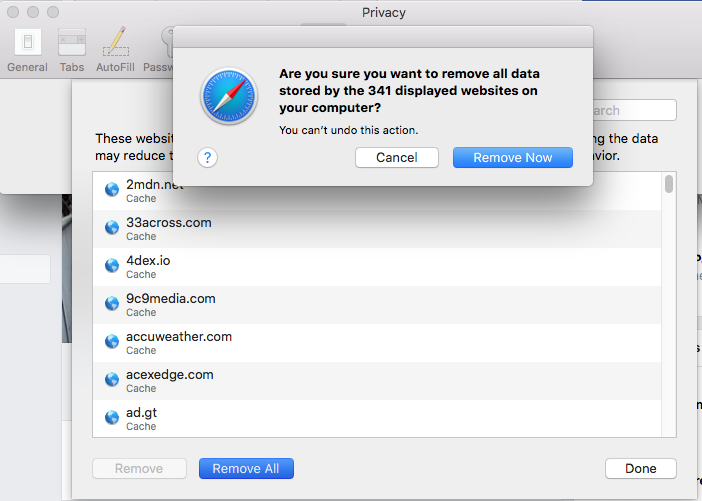
how to clear your safari cookies4. Check Extensions in Safari Preferences – Some types of malware will install extensions into Safari, like search preferences and corrupt toolbars. Remove anything you don’t remember installing.

5. Clear Cookies in Safari Preferences – Some say daily, some say less often, but you should delete your cookies periodically.

6. Do a malware scan with Malwarebytes free software – Malwarebytes is the only software I use to clear malware from clients’ computers

7. Check that there are no proxy options in your Network settings – This is a recent one I’ve seen that can affect internet connectivity. 

8. Create better passwords and record them somewhere handy – Some people like password managers like OnePassword and Last Pass. I say paper and pen are also a technology, and there’s less of a learning curve.

9. Create a redundant Time Machine backup and store it in a fire-safe box – Your data is the only thing that matters on your computer, 1 TB hard drives can be as cheap as $75. each, data retrieval starts at $1000.

10. Change your default browser to Firefox and search engine to Duck Duck Go – If your privacy means anything to you, try using more privacy oriented resources.
Using Multiple Photos Libraries On Your Mac

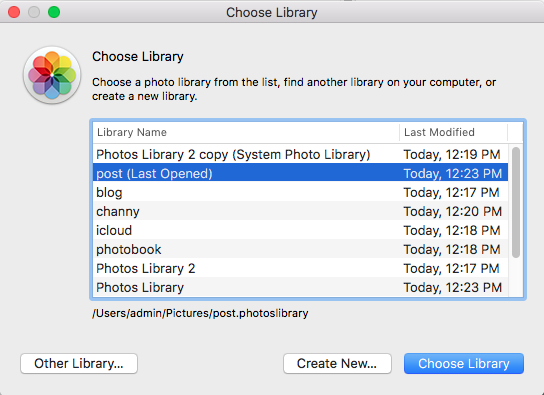
multiple photos librariesI’m regularly seeing Photos libraries of 10,000, 20,000, even up to 55,000 images (current record)! There’s nothing wrong with that, though it can cause an organizational nightmare, and also bog down the computer due to the large number of image thumbnails it must load. You can create and use multiple smaller Photos libraries, organized by year or by topic of your choice. To do so, launch Photos while holding down the Option key, you’ll be given a dialogue to either choose one of your existing libraries, or create a new one. Give it a name, import photos, and use it as normal. To switch back and forth from one library to another, you can either Option boot into the Photos program, or simply double-click on the Photos Library name in your Finder. 
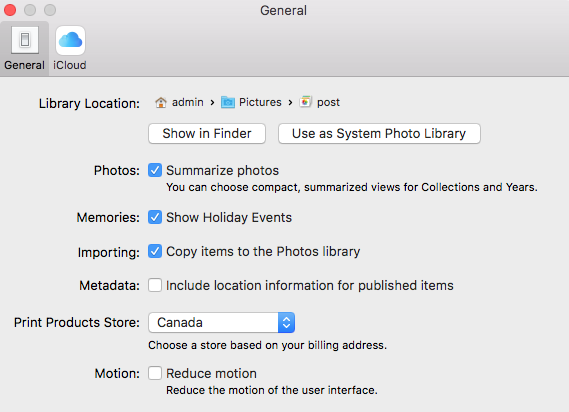
Screen Shot 2018 02 28 at 12.46.23 PMAnother benefit to this, is you can create and designate a particular library as your iCloud System Photo library, the one that will sync and store your pictures in the Cloud, taking advantage of the convenience of the iCloud syncing feature without storing each and every photo you possess on the Cloud.  Simply designate that library as your System Photo Library in your Photots Preferences, and if you want to use iCloud to sync those photos between devices turn the feature on in your iCloud settings.



Use iPhone Reader View to Get Straight To The Content

I read a lot of articles on my phone that I follow off social media. Much of it can be described as ‘clickbait’, full of ads and extra pages, though the content might have entertainment or educational value. Reader View is the answer. Click the icon in the top left of the address bar to strip the ads and links and get straight to the content.

iPhone Reader View

Apple Reader ViewIMG 7002

Self-Care For Your Mac Computer

Finally finished the resource file from a presentation I did for the PQMug last April 2017. Self-Care For Your Mac computer, in movie format. Steps you can take to troubleshoot and maintain your iMac or MacBook before calling a technician.


How To Clear Your Browser Caches and Cookies

If a website won’t load properly, keeps showing old information, won’t let you sign in, or is simply behaving strangely, clearing your browser’s cache and cookies is often an easy fix.

Your browser stores temporary website files to make pages load faster. Occasionally that stored information becomes outdated or corrupted and causes problems.

Safari on a Mac

To remove cookies and stored website data:

  1. Open Safari.
  2. Choose Safari > Settings.
  3. Click Privacy.
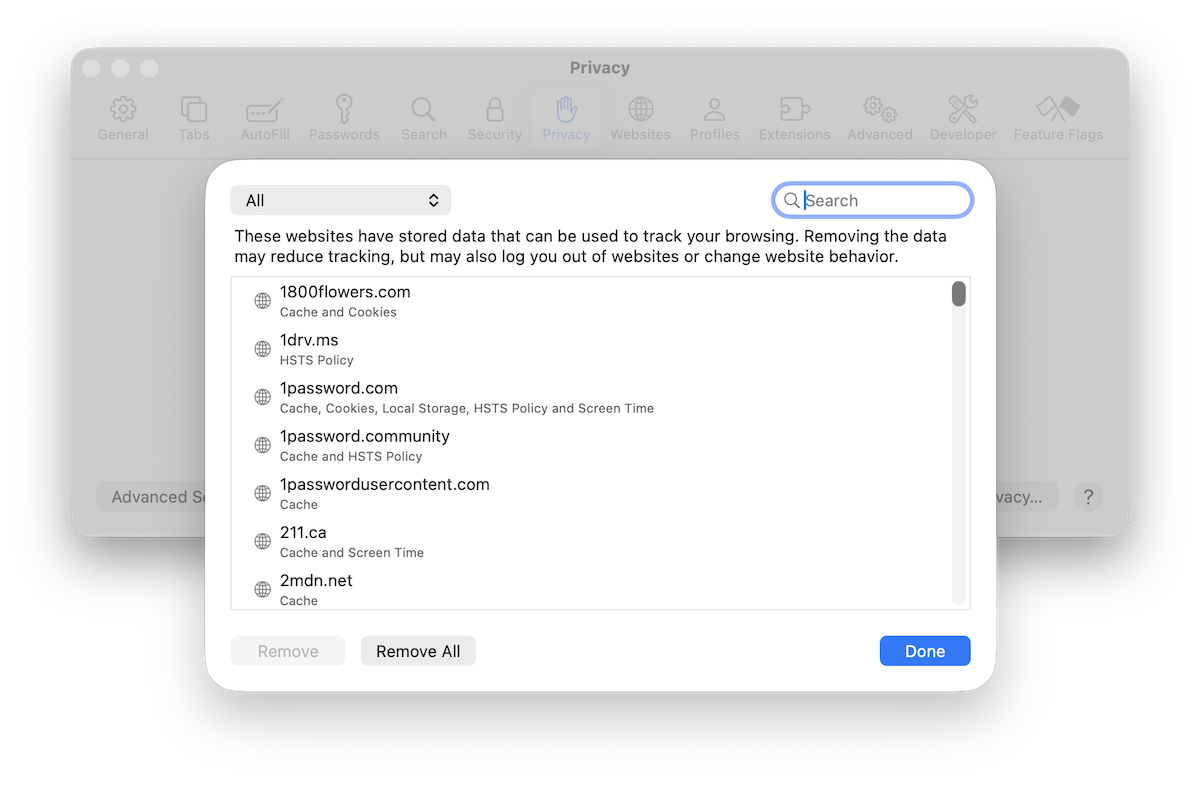
  4. Click Manage Website Data.
  5. Select a particular website and click Remove, or choose Remove All.
Safari Manage Website Data settings on a Mac
Safari lets you remove stored data for one website or clear everything.

If a page is still displaying old content, you can also empty Safari’s cache. Go to Safari > Settings > Advanced and enable the web developer features. Then choose Develop > Empty Caches from the menu bar.

Google Chrome

In Chrome:

  1. Click the three-dot menu in the upper-right corner.
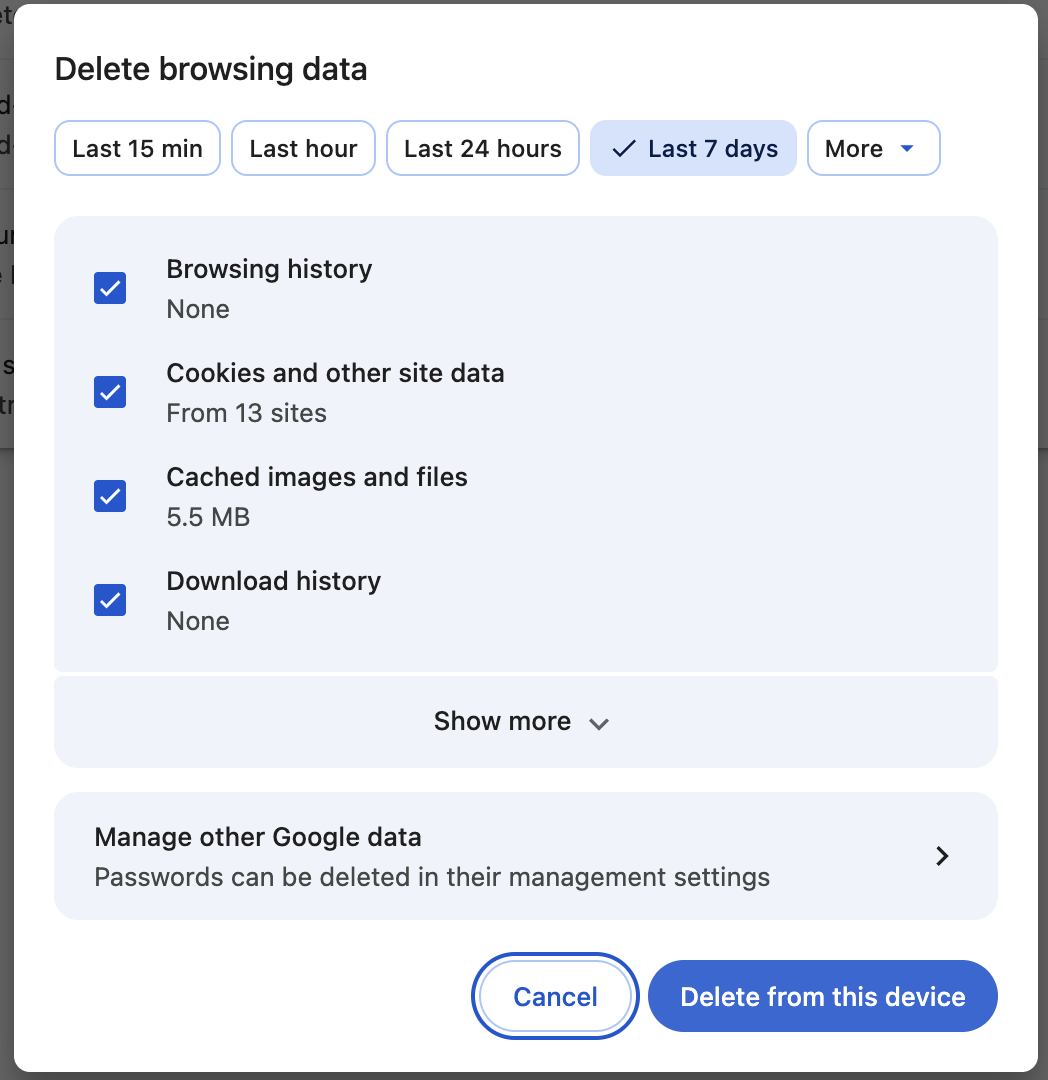
  2. Choose Delete Browsing Data.
  3. Select a time range.
  4. Check Cookies and other site data and Cached images and files.
  5. Click Delete Data.
Google Chrome Delete Browsing Data window
Chrome allows you to clear cached files and cookies independently.

On an iPhone or iPad

For Safari, open Settings > Apps > Safari and choose Clear History and Website Data.

Keep in mind that clearing cookies may sign you out of websites, so make sure you know your passwords before removing everything.

Still having trouble?

If clearing the cache doesn’t solve the problem, try quitting and reopening your browser, restarting your device, disabling browser extensions, or testing the website in another browser.

If your Mac, iPhone or iPad is still misbehaving, contact Up Your Media. We provide practical Apple support in Parksville, Qualicum Beach and throughout Central Vancouver Island.

Memory (RAM) vs Storage Capacity

Memory vs Storage.

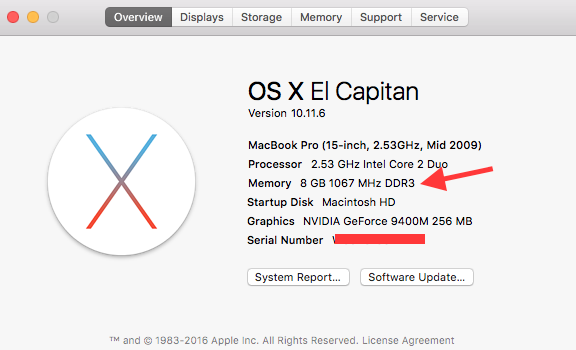
It’sScreen Shot 2017 03 01 at 12.41.55 PM important to know the difference between memory and storage capacity on your computer. RAM, or system memory, is used for temporary processing storage, and contributes to the speed of your computer.
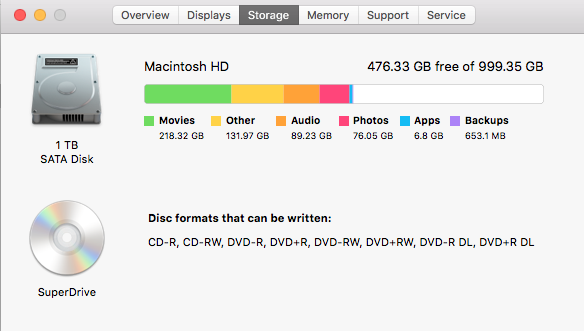
Storage is the overall capacity of your hard drive, i.e., how manysongs, pictures and documents you can keep on your drive.  Most iMacs contain 1 TB of capacity. Newer MacBook Airs and Pros tend to use Solid State (SSD) drives, with faster speed and less capacity, although the capacity vs cost is getting better. If your startup disk should become too full, performance will be negatively affected. 

You can check both these specifications on your machine by going to the About This Mac dialogue via your Apple menu at the very top left of your screen. Click on Storage to see what is taking up the bulk of the capacity of your machine.

Screen Shot 2017 03 01 at 12.41.55 PMBoth these components can generally be upgraded. It’s best practice to have the most RAM possible in your computer to maximize performance. To find out the maximum RAM for your model, check out this webpage.  Hard drives can also be upgraded with either mechanical HDDs (low cost, high capacity, slower speed) or SSDs (high cost, low capacity, higher speed). Call 250-240-3564 to inquire about details and costs on your memory and hard drive upgrades.
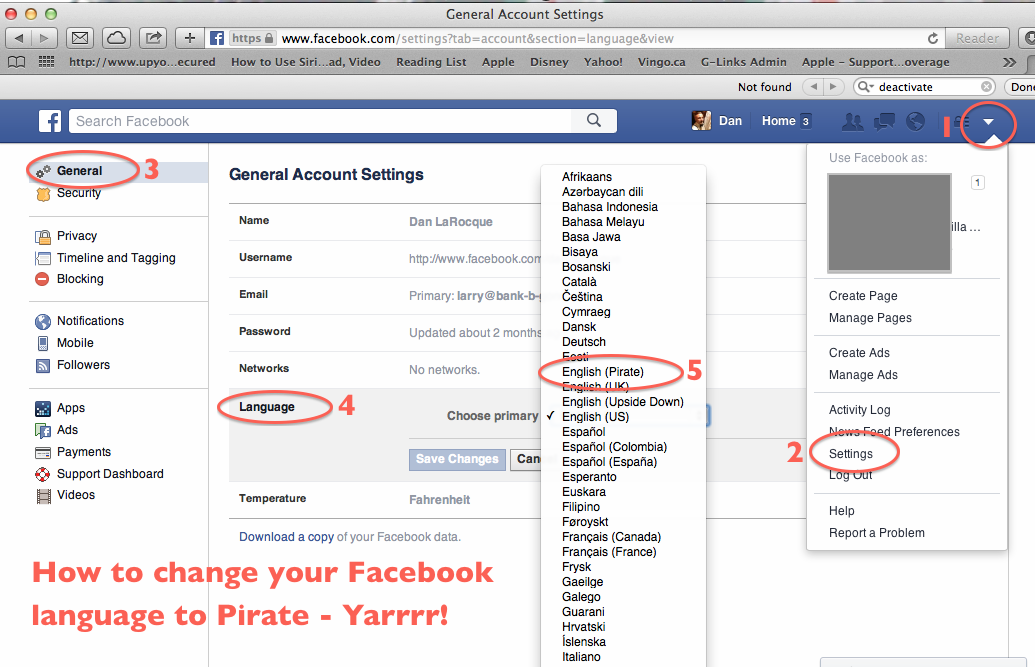
How to Deactivate Your Facebook Account and Change Your Language to Pirate. Arrrr!

That was a pretty good “Intro to Facebook” workshop for about 40 PQMug members last night. Two things that came up were how to deactivate your account, and how to change your language to Pirate. For the latter, click the triangular drop down menu at your far right, go to settings, choose General, select language, and save. Yarrrr!


Facebooklanguagetopirate


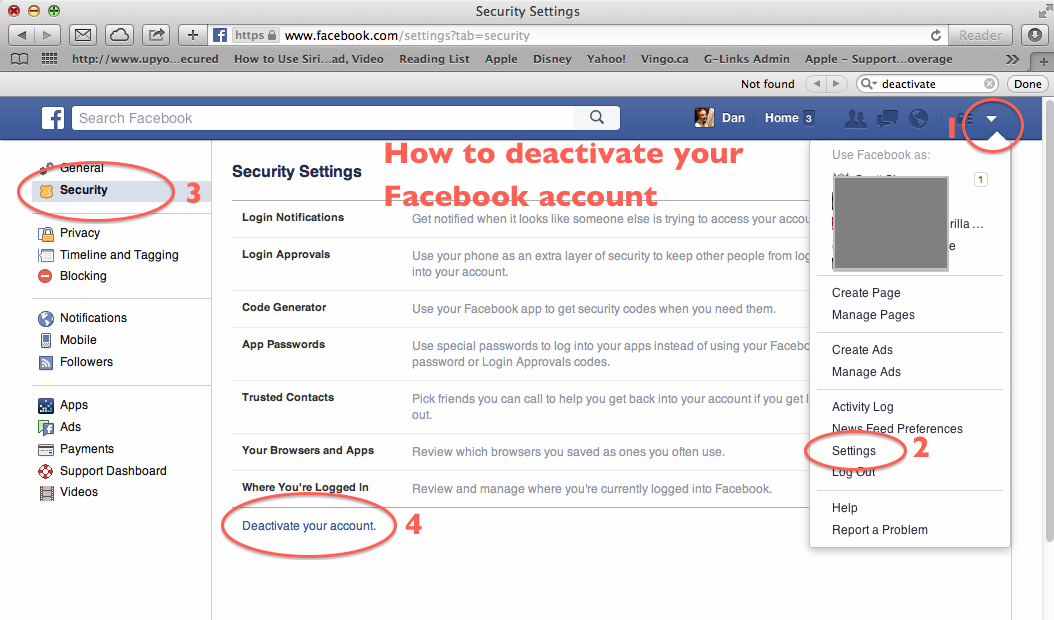
How to deactivate your Facebook profile


Your Startup Disk Is Almost Full – But not for long!

I’ve seen the same issue on 3 different MacBooks in the past week, a computer that basically ceases to function due to a completely filled hard drive. Your computer needs free space (aka headspace) to be able to ‘think’, room to place the data while it’s busy computing. The original MacBooks shipped with hard drives as small as 60 GB and up to 120 or 160 GB, which at the time was a fairly decent size considering the proportions of the files it was using. iTunes libraries have expanded, cameras have increased their pixel resolutions and people are downloading movies at a rampant pace, leading to the problem of lack of storage.blog9-img1

Luckily there’s no reason not to keep that computer on the info super-highway, and the fix is cheap and easy. There are two ways to mitigate this problem, either by upgrading the internal hard drive or by using an external drive to store your files. The former is my preferred method and a 500 GB internal drive can be yours in less than 24 hours and for a cost of around $225.00, complete with a restoration of your old data onto the new drive.

The latter is just as easy and can be as cheap as $100-$150 for a 500 GB or 1 TB drive. Make sure you format the drive using Disk Utility as Mac OS Extended, since your MacBook can communicate with the drive right out of the box, but you will likely have problems dragging larger files onto the drive if it’s formatted as MS DOS FAT. Drag your movie files and other large folders directly onto the drive and erase them off your internal disk to free up headspace. If you have a substantial iTunes library you can use the external drive as the source of your music files, same goes with iPhoto and your iMovie media files. You can continue to use the external drive as your Time Machine backup (also highly recommended).

Times are tight and most people don’t have the budget to buy a brand new computer every time their older machine fills up. This is quick, cheap and easy way to extend the life of your older machine.

Passwords and Security for Macs and for Mail

It’s a common perception that Macintosh computers are immune to viruses and malware, but technically, that’s not quite true. Despite Apple’s more secure UNIX based operating system, any computer is susceptible to attacks from unscrupulous programmers. However, in 20 years of using Macs online on a daily professional basis, I’ve yet to hear first hand of any successful, debilitating mass attack. To this day, the only reason I have an antivirus software on my computer, is because I was asked by a client to test it. I check it every 2 weeks or so, with no reported attacks.

Email is another issue that can be problematic from a security standpoint, particularly webmail services, such as Hotmail, Yahoo and Gmail. Hotmail is probably one of the most hacked email services out there, and you’ve probably gotten emails in the past year from ‘friends’ whose accounts have been compromised, and who have unwittingly spammed their entire contacts list. Your best defense against such potentially harmful hacking is to change your password to something more secure, and change it again every few months.

When I say a more ‘secure’ password, that means that it should not be a common word, or string of numbers. According to the New York Times, the most common passwords out there are ‘12345’, followed (logically) by ‘123456’, and then, if you can believe it, ‘password’. And if you’re one of the 70% of people I meet whose password is the name of their pet, or their children, don’t worry, there’s help for you.

One trick I use when creating a new password is to substitute certain letters for numerals, ie., if the word contains an ‘O’, I’ll use zero. If it has an ‘E’, I’ll use the number three, and if there’s an ‘I’, I’ll substitute a one. Also, any letter in the word that falls on the top row of the qwerty keyboard, I will capitalize, thus making the password far harder to hack by any online robot. Visually it will look similar to the word I find easy to remember, but it’s far more secure against hackers. For instance, if one of my favourite authors is Farley Mowat, I might have a password that looks like faRl3Y. If my pet’s name is Luther, my password mght look like lUTh3r. It might.

Passwords are probably the most problematic issue for casual users. If I had a nickel for every time I asked a client for their computer, email, Skype, Apple ID or wifi password, only to be greeted with a blank stare, I’d be a wealthy man. As discussed in the last installment, the Keychain access utility on your Mac will remember your lesser passwords for you, and allow you to retrieve them if need be, but you will need to know your computer user password to access them.

You can get away with not having your Apple computer’s password for a short period of time, but any software updates or installs will require that you remember it eventually. Luckily you can change the user password by booting from your system disk, included in the box at purchase time. To do so, insert the disk, click restart and hold down the ‘C’ key until you see the grey screen and spinning gear. Once it’s up and running, there will be a list of utilities in a drop-down box. Choose ‘reset password’ and input a password that you will remember, according to some of the previous hints. If you’re running Lion or Mountain Lion, hold the Option key on startup and choose the Recovery HD icon. That will bring up a similar set of options.

When it comes to passwords, my suggestion is to use one or two straightforward passwords for inconsequential websites, like Facebook or Skype, and another one or two more secure passwords for more sensitive uses, such as email or online banking. And it wouldn’t kill you to write them down somewhere and store them somewhere not far away, because your main security threat is not the person who breaks into your home to steal your valuables, but some professional in an office in Russia, or his mom’s basement in Dakron, sniffing around for trouble.

Protect yourself with strong passwords.